How to Get a QR Code for Collecting Google Reviews
In this guide, we outline two methods for getting a QR code for collecting Google reviews on your Google Business Profile. Be sure to explore both QR code creation methods and their various pros and cons listed in our decision matrix.
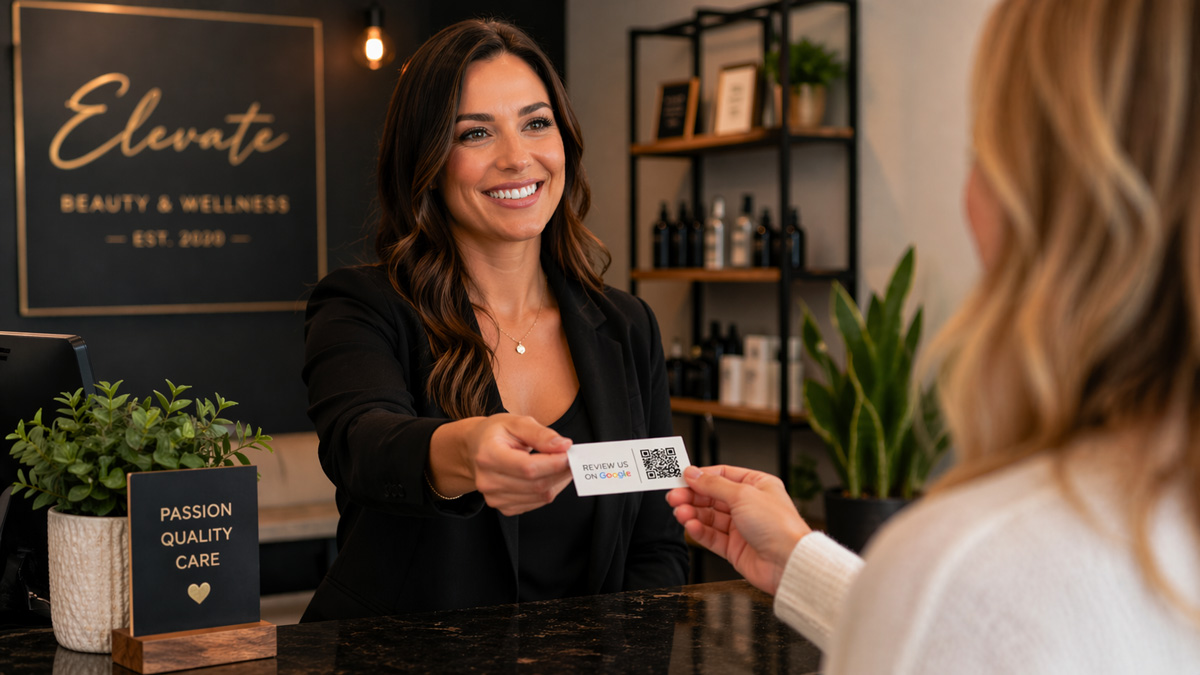
Table of Contents
- Method 1: Get a QR Code for Google Reviews Via Your Google Business Profile Manager Account
- Method 2: Create a Custom QR Code for Collecting Google Reviews
- Should I Use a Free QR Code Generator for Google Reviews?
- What to Do with Your Google Reviews QR Code
- Automate Your Review Collection Instead of Manually Managing QR Codes and Links
Method 1: Get a QR Code for Google Reviews Via Your Google Business Profile Manager Account
Google natively provides support for generating a QR Code directly within your Google Business Profile manager account.
To access the Google generated QR Code, follow the steps below:
- Ensure you are logged into the Google account that manages your Google Business Profile (GBP).
- Visit https://business.google.com and click on your business name if you manage multiple locations or businesses.
- Alternatively, you can search for your business name on Google which should trigger the GBP management interface.
- Select the “Ask for Reviews” icon.
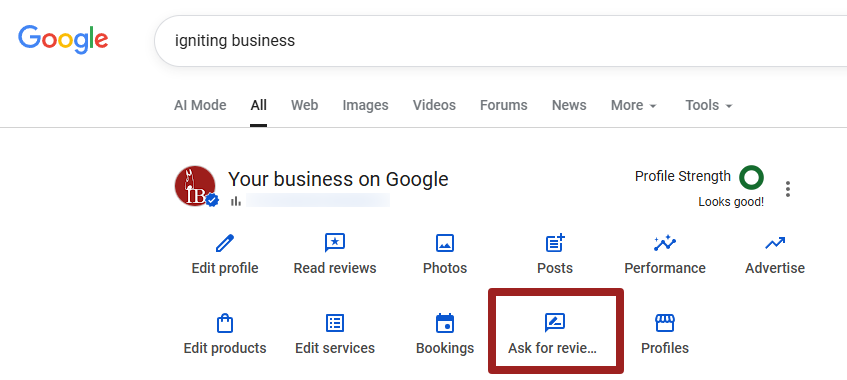
- Under the “Share your reviews QR code,” you should see a QR code that has been generated by Google.
- Right click on the QR code and select “Save image as.”
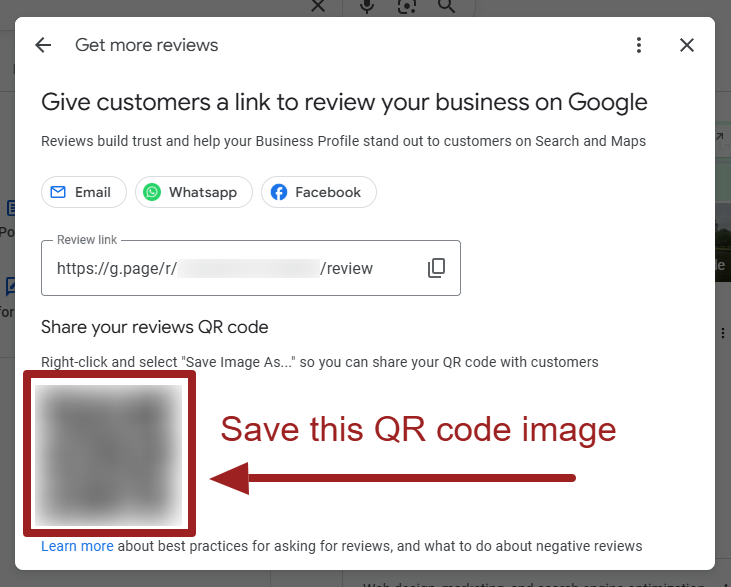
- Save the image to your computer so you can print it out, add it to other marketing materials, etc.
- Test the QR code from a phone that is not logged into a Google account that manages your business.
That’s all! Now you have a working QR code that you can use within your marketing efforts. Keep in mind the Google provided QR code comes with some unfortunate limitations.
Method 2: Create a Custom QR Code for Collecting Google Reviews
In some cases, you may not want to use the Google provided QR Code for collecting reviews. If you want to use a third-party QR code generator to create your own Google reviews QR code, follow the steps below:
- Ensure you are logged into the Google account that manages your Google Business Profile (GBP).
- Visit https://business.google.com and click on your business name if you manage multiple locations or businesses.
- Alternatively, you can search for your business name on Google which should trigger the GBP management interface.
- Select the “Ask for Reviews” icon.
- Under “Review Link” copy the link provided or click the copy icon.
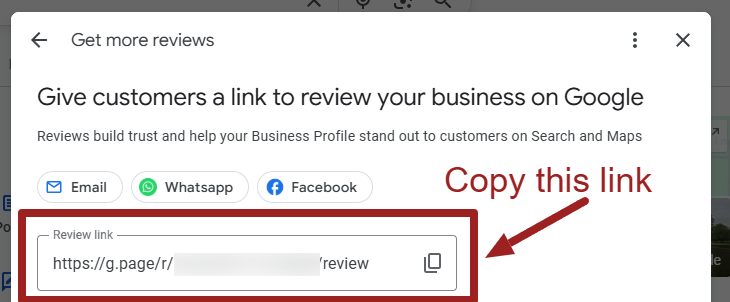
- Sign into your preferred QR Code Generator tool. It’s critical to sign-in vs. use a free generator to enable tracking features and avoid your QR code being lost.
- The actual steps for creating the QR code will vary based on which QR code generator you use.
- If you need a recommendation for a QR code generator, we recommend using the built-in generator by https://bitly.com/ or https://www.qr-code-generator.com/
- Create a custom QR code and enter the link copied from step 4 as the destination of the QR code.
- Test the QR code from a phone that is not logged into a Google account that manages your business.
Note that we highly recommend using a paid QR code generator, as the paid platform can give you further customization options, allow for future updates to the link as needed, and track usage analytics.
Should I Use a Free QR Code Generator for Google Reviews?
If you are on a budget, using a free QR code generator might work for your needs. However, it comes with limitations and potential downsides. Check this decision matrix regarding using the Google QR code generator vs. free QR code generators vs. paid QR code generators.
What to Do with Your Google Reviews QR Code
After you’ve tested your QR code, you can add it to various marketing materials like flyers, brochures, a business card, social posts, etc.
Make a plan for routinely asking for reviews from your customers. Keep in mind that review frequency, recency, and average rating affect your SEO and credibility. Be sure you are abiding by the policies on who you can and cannot ask for a Google review.
If you need help creating graphics for printed marketing materials or a social post, you can try using the free Adobe Express. This tool allows you to create graphics from existing templates, with the help of AI, and without any graphic design knowledge needed!
If you want to print out your Google Review QR code, we suggest printing it on business cards or postcards. Vistaprint has some excellent options for very affordable printing, and they have starter templates you can use!
One Caution About Displaying Scannable QR Codes At Your Business Location
Note that Google has very rigorous review filters configured to automatically remove Google reviews that are suspected spam, incentivized, purchased, or otherwise illegitimate. We've seen evidence in the past where reviews coming in from the same IP address (which would include all customers actively on your guest Wi-Fi) could look suspicious and be filtered out.
As a result, it's typically considered safer practice to hand out business cards or individual flyers that customers can scan at home after visiting your business.

If you do decide to display a scannable QR code at your business like the one shown above, you might keep an eye out for visitors who say left you a review, but you did not see one publicly on your Google Business Profile.
Automate Your Review Collection Instead of Manually Managing QR Codes and Links
QR codes can be great for collecting reviews. However, we’ve found that customers typically may need multiple reminders to leave a Google review. As such, it might be better to invest in a review collection or reputation management tool.
Reputation Management tools allow you to simply add a customer’s name, email, and phone number. The system will reach out to the customer, provide a review link, and send reminders to customers to leave a review. One of our favorite reputation management systems is by Semrush, which you can try for free.
For more guides and tips like these, subscribe to our free monthly newsletter.
At no additional cost to you, we may receive a commission if you click on some of the links on this website and make a purchase.